
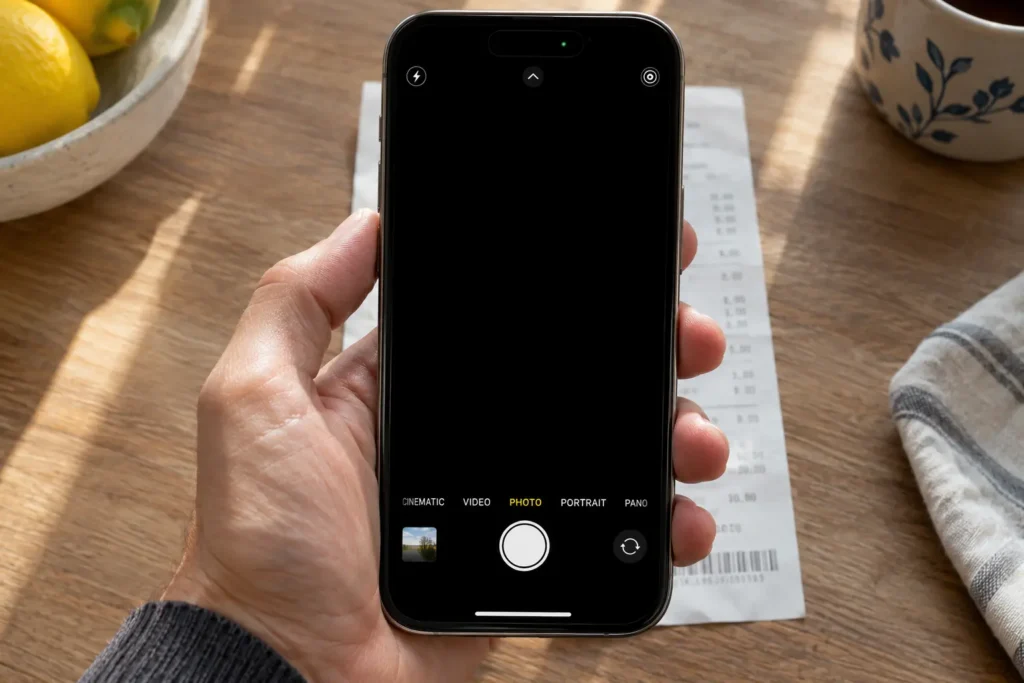
If you can see the shutter button but the rest of the camera screen is black, uncover the lenses, take off the case, and test both cameras in Apple’s Camera app. The camera preview is the live image you see before taking a photo. Whether that image disappears in one app, on one camera, or everywhere tells you which fix to try first.
Start with a quick camera test
- Remove the case and any lens cover, magnetic mount, or clip-on lens. Check that your fingers are clear of the rear lenses and the front camera at the top of the display.
- Open Apple’s Camera app and select Photo. Point the rear camera at something easy to recognize in good light, such as a receipt on a table.
- Tap the switch-camera button with the curved arrows. Look for your face in the front-camera preview, then switch back to the rear camera.
- If a live image appears, press the white shutter button. Tap the thumbnail and open the photo you just took to check what the iPhone saved.
| What you see | What to do next |
|---|---|
| Both cameras work in Apple’s Camera app, but WhatsApp, Instagram, or another app is blank | Check camera permission for the affected app. Then return to the exact feature that failed. |
| The front camera works, but the rear camera stays black | Select the rear camera in a second app that has camera access. If it stays black there too, follow the restart and update steps below. |
| Both cameras stay black in Apple’s Camera app | Close and reopen Camera, restart the iPhone, then check for an iOS update. Retest after each step. |
| The preview is black, but the new photo opens normally | The iPhone captured that photo. Focus on where the live preview fails, and mention the successful capture if you contact support. |
If the camera is black only in WhatsApp, Instagram, or another app
Check camera permission for that app
Open Settings → Privacy & Security → Camera. Find the app that showed the blank preview and turn on its switch. Return to the app, open its camera, and try again. If you’re joining a video call, also check the call’s own video button. An app can have permission to use the camera while your video is switched off for a particular call.
If the app is missing from the list, open the feature that actually takes a picture, such as the camera button in a chat. If an iPhone permission prompt appears, allow camera access and test again. Apple’s list shows apps that have requested access. Simply opening a chat or browsing existing photos may never trigger that request.
If permission is already on, close and reopen the affected app. If the preview stays black, restart the iPhone and check the App Store for an update to that app. When both cameras continue to work in Apple’s Camera app and the problem remains confined to one app, contact its developer. Include the feature that failed, such as “rear camera in a WhatsApp chat” or “front camera when joining a call.” Apple Support (UK)
Example: Send a receipt even if WhatsApp’s camera is black
Suppose you need to send someone a receipt. You tap the camera in WhatsApp, see the chat’s camera controls, and get a black preview. Leave the chat, open Apple’s Camera app, select Photo, and photograph the same receipt with the rear camera. Open the new picture and zoom in enough to check that the total is readable.
If the photo looks good, return to the chat, tap the attachment plus (+), and choose the option for an existing photo. Select the receipt and send it. The picker’s label can vary by app version. You can finish the immediate task before spending more time troubleshooting.
Then check WhatsApp under Settings → Privacy & Security → Camera and try taking another picture from inside the chat. Sending the saved receipt confirms that the attachment worked. Seeing a live preview and taking a new picture inside WhatsApp confirms that its camera works again. Apple Support (VN)
If the front camera works but the rear camera stays black
Test the same camera in two places. A successful selfie in a calling app tells you the front camera worked during that call. To investigate the rear camera, switch that app to its outward-facing view and point it at the same well-lit object you used in Apple’s Camera app. Use an app that already has camera access so a permission prompt doesn’t confuse the result.
If the rear view returns in the second app, switch back to Apple’s Camera app and try another photo. If the rear view stays black in both apps while the front view works in both, keep the case and lens accessories off and continue with the steps below. The same approach applies if the front camera is the one that fails. A repeatable pattern gives Apple a specific symptom to investigate. A single black preview is too little evidence to identify a failed part. Apple Support (IN)
If one or both cameras stay black in Apple’s Camera app
1. Close and reopen Camera
On an iPhone without a Home button, swipe up from the bottom edge and pause in the middle of the screen. On an iPhone with a Home button, double-click it. Find the Camera app card and swipe the card up to close it. Open Camera again, choose Photo, and try the camera that failed. If the preview returns and the photo saves correctly, you can stop here.
2. Restart the iPhone and retest
On an iPhone with Face ID, hold the side button and either volume button until the power-off slider appears, then release them. On an iPhone 6, 7, 8, or a second- or third-generation SE, hold the side button alone. On a first-generation SE, iPhone 5, or earlier model, use the top button.
Drag the slider and wait about 30 seconds. Hold the side or top button again until the Apple logo appears. After unlocking the phone, open Apple’s Camera app first. Test the front and rear views, then reopen the app where the problem began. This order lets you see whether restarting helped Camera, the other app, or both.
3. Check for an iOS update
Go to Settings → General → Software Update. This screen shows the installed iOS version and whether an update is available for your iPhone. If one is offered, back up the phone, connect it to power and Wi-Fi, and follow the installation prompt. The button wording can vary by iOS version.
Once the update finishes, repeat the original test with the case still off. If your iPhone already shows that it’s up to date and the same camera remains black in multiple apps, move on to support.
How to confirm the camera is fixed
Return to the app, camera, and activity that originally failed. If it was the rear camera in a chat, take a new photo from that chat and open the result. If the problem appeared while recording video, record a short clip while moving the phone slightly, then play the saved clip. You should see the scene change both in the live preview and during playback.
For a video call, turn your video on and ask the other person whether they can see you move. For a QR scanner, point it at a familiar code and check whether it recognizes it. If the scanner now shows a clear live image but still can’t read one particular code, try a second code. That gives you a way to distinguish a blank preview from a scanning problem.
When to contact Apple Support
Contact Apple if the same camera repeatedly stays black across apps after you remove accessories, restart, and check for updates, or if both cameras still fail in Apple’s Camera app. Apple’s current black-screen guidance also describes a camera diagnostic on supported devices. Follow the instructions available for your model or ask Apple Support to guide you.
Have four details ready: your iPhone model, iOS version, which camera fails, and what you already tested. Find the model and software version under Settings → General → About. A useful report might read, “The rear preview stays black in Camera and WhatsApp. The front camera takes normal photos in both. I removed the case, restarted, and checked Software Update.” If a photo saved normally despite the black preview, mention that too.
Choose your country or region on Apple Support to see local service options, including Apple Authorized Service Providers where available. Repair availability and fees vary, and a provider may need to inspect the phone before quoting a price. If your service provider asks for the device’s IMEI during booking, Teche Time has a separate guide to locating it. Apple iPhone service and repair · How to find your iPhone’s IMEI.
FAQs
Why can I see the shutter button if the camera preview is black?
The shutter button is part of the app’s controls. You can see it even when the live image is missing. Tap it once while aiming at a recognizable object, then open the newest photo. Check that it’s the picture you just attempted to take. An older thumbnail can look like a successful capture until you open it.
What does the green dot mean when the camera view is blank?
The green indicator means an app is using the camera, either alone or together with the microphone. It tells you about camera access. To check image quality and capture, you still need to open a newly taken photo or play a newly recorded clip.
Should I delete WhatsApp or Instagram to fix a black camera?
Start with permission, reopening the app, restarting the phone, and checking for an app update. Deleting an app can remove locally stored data, so check that anything you need is backed up before considering a reinstall. If you reach that step, Teche Time explains the difference between removing an icon and deleting the app. How to remove apps from your phone.
Final Words
Before you change another setting, answer one question: Can the same camera take a usable photo in Apple’s Camera app? If it can, you have a way to take the picture you need and a specific app to troubleshoot. If that camera keeps failing across apps after the basic checks, you have a clear result to take to Apple. In either case, the final test is the one that matters to you: return to the original task and check the picture, clip, call, or scan for yourself.