
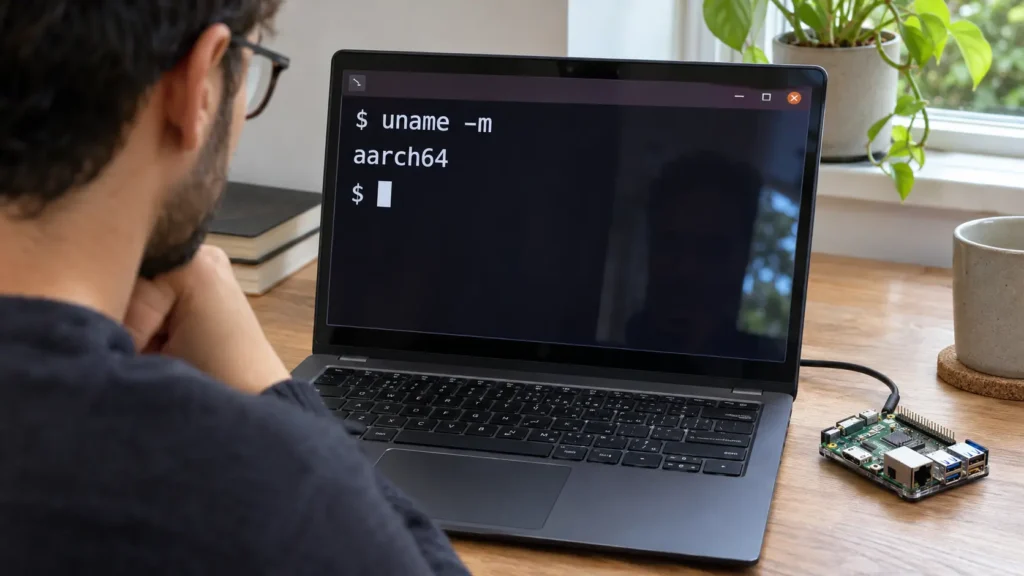
Start with two commands on the Linux system where the program failed. Replace ./mytool with the actual path to the file you tried to run. If you connected to a server over SSH, run both commands in that SSH session.
uname -m
file ./mytool
Illustrative output:
$ uname -m
aarch64
$ file ./mytool
./mytool: ELF 64-bit LSB executable, x86-64, version 1 (SYSV), statically linked, stripped
This server needs the Linux arm64 release. The first command identifies the machine architecture as aarch64. The second identifies a program built for x86-64, usually labeled amd64 on download pages. Both are 64-bit architectures, but they use different machine instructions. Download the Linux ARM64 build, inspect it with file, and retry the command. If your output looks different, use the table below.
Match your file output to the right fix
A binary in this context is the compiled program you downloaded or built. Its architecture tells you which CPU instructions it contains. Its executable format tells the operating system how the file is organized so it can load the program. Linux tools commonly use the ELF format. A file called mytool-linux can still contain a macOS program, a compressed archive, or even a download error page. The file command examines the contents, so it can distinguish these cases without starting the program. Linux manual page
The table shows illustrative fragments. Your output may include extra details such as a build ID or whether the executable is dynamically linked.
What file ./mytool reports |
What to do next |
|---|---|
ELF 64-bit ... x86-64 |
If uname -m says x86_64, the CPU family matches a Linux amd64 release. If it says aarch64, get the Linux arm64 release. |
ELF 64-bit ... ARM aarch64 |
This matches an aarch64 Linux machine. On an x86_64 machine, choose the Linux amd64 release. |
Mach-O 64-bit executable arm64 |
You have a macOS build. Download the Linux release for your CPU, even if both machines use ARM64. |
gzip compressed data or Zip archive data |
Check the publisher’s packaging instructions. Extract the archive into a fresh directory, then run file on the program inside. |
HTML document, UTF-8 text |
Open the release page and download the actual release asset. Check whether the original link led to a sign-in page, preview, or error message. |
data or empty |
Check the expected file size and publisher’s checksum, if available. Download the asset again if either differs. data alone means the format went unrecognized. |
Bourne-Again shell script or Python script |
Inspect the first line and check which interpreter the script expects. Follow the script instructions below. |
symbolic link to ... |
Run file -L ./mytool to identify the target. An old link can still point to a previous installation. |
If the original command was just mytool, check what your shell actually selected with command -v mytool. If it prints /usr/local/bin/mytool, inspect that path. A newly downloaded ./mytool and an older installed mytool can produce different results in the same terminal.
Worked example: An AMD64 download on an ARM64 cloud server
Suppose you downloaded mytool-linux-amd64, saved it as ./mytool, and received this message:
bash: ./mytool: cannot execute binary file: Exec format errorYour server returns aarch64, and file ./mytool reports x86-64, as in the opening example. That is enough to choose a replacement. The words 64-bit, statically linked, and stripped can all appear in a valid download. The decisive detail here is x86-64.
- Choose the matching release. Return to the project’s official download page. Select the same tool version for Linux ARM64, sometimes labeled
linux-aarch64. An asset nameddarwin-arm64targets macOS. - Inspect the replacement before installing it. Save it as
./mytool-linux-arm64. If it comes in an archive, extract it first. Runfile ./mytool-linux-arm64on the extracted program. - Check that it starts. If this trusted download lacks execute permission, run
chmod u+x ./mytool-linux-arm64. Then use the project’s documented version command. The example below assumes the tool supports--version. - Retest the original invocation. Install the verified replacement at the path your command uses. Return to the same server session and retry the command, including its original arguments.
Illustrative verification:
$ file ./mytool-linux-arm64
./mytool-linux-arm64: ELF 64-bit LSB executable, ARM aarch64, version 1 (SYSV), statically linked, stripped
$ ./mytool-linux-arm64 --version
mytool 1.2.3
The version check proves that this particular file starts. Retrying the original command tells you whether your shell, service, or job is using the corrected copy. The same distinction applies when you administer a home server from a different computer. Run the checks on the machine that hosts the software. For an example of that setup, see Teche Time’s guide to setting up a personal AI server.
If the file is a script, check how it starts
When file identifies text or a script, read the first line:
head -n 1 ./mytoolA line such as #!/bin/bash tells Linux to start Bash when you run ./mytool directly. A line such as #!/usr/bin/env python3 starts env, which looks for python3 on the current PATH. Check the interpreter in the environment where the script runs. Your laptop might have Bash or Python installed while a minimal container has neither.
The launch command matters, too. If the project documents python3 mytool.py, use that command. Passing a compiled ELF binary to bash ./mytool asks Bash to read machine code as shell instructions. Launch the compatible binary directly with ./mytool.
If the first line looks right but the interpreter appears to be missing, run sed -n '1l' ./mytool. A first line ending in \r$ reveals Windows-style line endings. For a script beginning with #!/bin/bash, that extra character can become part of the interpreter path. Save the script with Unix LF line endings and retry it directly.
When the error says “Permission denied” or “No such file or directory”
These messages can appear at the same point in an installation, but each directs you to a different check. The Linux execve(2) manual distinguishes a format error (ENOEXEC), an access failure (EACCES), and a missing path or interpreter (ENOENT).
“Permission denied”
Run ls -l ./mytool and inspect the permission bits. If you own the file, have verified that it is the intended executable, and the owner’s execute bit is missing, use:
chmod u+x ./mytoolIf permissions already allow execution, check whether the filesystem is mounted with noexec or whether you lack access through a parent directory. Adding the execute bit changes file permissions. The CPU instructions and executable format stay exactly as downloaded, so chmod +x cannot fix an architecture or operating-system mismatch.
“No such file or directory” even though the file exists
First run ls -l ./mytool and check any symbolic-link target. If the program exists, Linux may be reporting a second missing file it needs during startup. For a script, inspect the interpreter line. For a dynamically linked ELF binary, inspect its requested loader with readelf from GNU Binutils:
readelf -l ./mytool | grep 'Requesting program interpreter'For example, an x86-64 executable might request /lib64/ld-linux-x86-64.so.2. Check that exact path inside the environment where the program fails. A loader present on the Docker host does not supply it inside a container. If the loader is missing, choose a build compatible with your distribution or use a runtime image that supplies the required loader and libraries. A statically linked binary generally produces no interpreter line from this check.
How to fix exec format error in Docker
Docker adds a second architecture decision. The registry can provide the correct image variant for your server, yet the image can contain an application copied from a developer’s laptop. Check both the image platform and the file its entrypoint launches. Docker Docs
1. Check the image variant and startup command
Replace your-registry/myapp:tag with the exact image reference from the failed deployment. The first command checks the published image. The second inspects the image available locally on the Docker host.
image='your-registry/myapp:tag'
docker buildx imagetools inspect "$image"
docker image inspect "$image" \
  --format '{{.Os}}/{{.Architecture}} entrypoint={{json .Config.Entrypoint}} cmd={{json .Config.Cmd}}'
Look for the target platform, such as linux/arm64, among the published variants. Then read the local entrypoint and cmd together. For example, entrypoint=["/usr/local/bin/myapp"] gives you a file to inspect. If your Compose file overrides entrypoint or command, follow the command from that deployment.
2. Inspect the application without starting it
Suppose the local image reports linux/arm64 and names /usr/local/bin/myapp as its entrypoint. Create a stopped container and copy that file into a temporary directory. This works even when the image has no shell or the application fails immediately.
inspect_dir=$(mktemp -d)
cid=$(docker create "$image")
docker cp -L "$cid":/usr/local/bin/myapp "$inspect_dir/myapp"
file "$inspect_dir/myapp"
docker rm "$cid"
If the copy reports ELF 64-bit ... x86-64, you have found the mismatch: an AMD64 application inside an ARM64 image. A Dockerfile instruction such as COPY myapp /usr/local/bin/myapp copies the existing file byte for byte. The ARM64 label on the finished image cannot tell you how that file was compiled.
Correct the build step that produces or downloads myapp. For an ARM64 deployment, supply the Linux ARM64 executable. For a multi-platform build, have the build select or compile the application for each target architecture. Docker provides build arguments such as TARGETARCH for this purpose. If the entrypoint is a wrapper script, inspect its interpreter and follow the path to the application it launches.
3. Verify the normal entrypoint
Rebuild the corrected image, deploy the new tag or digest, and repeat the original docker run or Compose startup on the target host. Keep the normal entrypoint and deployment mounts in place. A bind mount over /usr/local/bin/myapp, for example, can hide the corrected file inside the image.
For a command-line container, verify that the original command produces its expected output. For a service, confirm that the application starts and answers its usual health check or request. Opening a shell with --entrypoint sh tests only whether that shell starts.
FAQs
Why does the same binary work on my laptop but fail on a Raspberry Pi?
Check uname -m on the Pi itself. A laptop may report x86_64, while the Pi may report aarch64 or a 32-bit ARM architecture such as armv7l. Choose the Linux build supported by the Pi’s installed operating system. A release labeled simply arm needs a closer look at the publisher’s supported variants.
What if I compiled the program myself?
Run file on the final executable you copied to the target. A successful build on an AMD64 workstation can produce a valid AMD64 program that an ARM64 server cannot run natively. Build on the destination machine or configure your compiler for the target OS and architecture. Inspect the final artifact again before deploying it.
Will docker run --platform linux/amd64 fix the problem?
It can help when you deliberately want an entire AMD64 image and the host supports AMD64 execution, either natively or through emulation. The flag selects a platform. It cannot convert an AMD64 application accidentally packaged inside an ARM64 image. For that case, rebuild the affected image with the correct application binary.
Final words
The quickest route to a fix is to identify the exact file Linux tried to start. Use uname -m where the failure occurred, run file against the path the command actually uses, and follow what the output tells you. Once you replace the download, correct the interpreter, or rebuild the container, retry the original command in its original environment. That final run confirms the fix reached the program you meant to launch.