
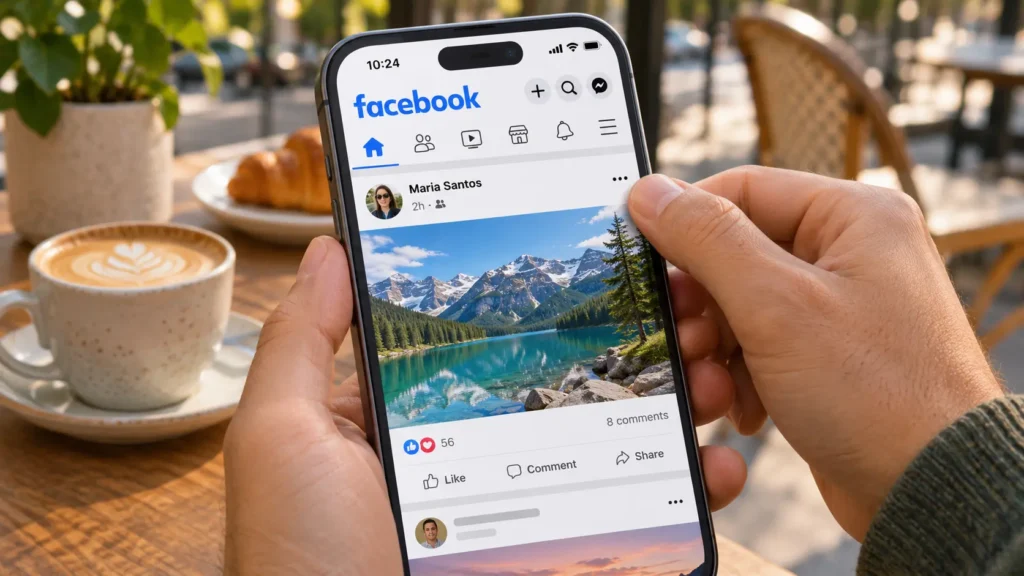
On Facebook, find a post from the person in your Feed, tap or click the three dots (⋯) in the upper-right corner of that post, and choose Snooze [Name] for 30 days. Facebook pauses their posts in your Feed and keeps you connected. The person won’t receive a notification, and the pause ends automatically. The same option works for Facebook Pages and groups when it appears on their Feed posts.
If you’re already looking at someone’s profile and wondering where the button went, go back to your Feed. The menu attached to an individual post is where you start a snooze. If you’ve already snoozed someone and want to end it, go to Content preferences → Snooze.
How to snooze someone on iPhone, Android, or a computer
On iPhone or Android
- Open the Facebook app and go to your Home Feed, where you scroll through posts.
- Find a post from the person, Page, or group you want to pause.
- Tap the three dots (⋯) in the upper-right corner of the post. Look beside the author’s name, above the photo or text.
- Read the name in Snooze [Name] for 30 days. If it matches the person, Page, or group you have in mind, tap it.
- If you selected the wrong name, tap Undo in the confirmation message while it’s still visible.
The starting steps are the same on iPhone and Android. An easy mistake on either phone is tapping the photo first. If the picture opens full screen and you see a different set of controls, go back one screen. You want the three dots on the Feed post itself.
On a desktop browser
Open Facebook in your browser and find the post in your Feed. Click the three dots at the top right of the post, then click Snooze [Name] for 30 days. If you change your mind immediately, click Undo in the confirmation. about.fb.com
On a computer, you may see two sets of three dots on the same screen. The ones at the very top of Chrome, Edge, or another browser open browser settings. The ones you need sit inside the Facebook post, usually level with the name of the person who shared it.
What happens when you snooze someone?
For the next 30 days, Facebook pauses posts from the selected source in your Feed. If you snooze a friend, you stay friends. If you snooze a group, you keep your membership. You can still open the person’s profile, visit the Page, or go into the group when you want to catch up. Facebook doesn’t tell the person, Page, or group that you snoozed them.
Snooze affects what comes to you in Feed. It doesn’t change the audience for anything you publish. If a friend could see a photo you shared with friends before you snoozed them, snoozing them gives you no additional privacy for that photo. To control who sees something you share, use the audience selector on your own post.
A practical example
Say your friend Maria is on a two-week trip. You enjoy her photos, but she’s sharing several updates a day. You’d like to catch up on the trip over the weekend instead of seeing each update while you scroll.
The next time one of Maria’s vacation posts appears in your Feed, open its three-dot menu and choose Snooze Maria for 30 days. On Saturday, you can visit her profile and look through the photos she’s shared with you. Visiting is enough if you want to see them once. If she’s home and you’d like her updates back in your Feed, you can end the snooze early.
What happens after 30 days?
The snooze expires automatically. Posts from that person, Page, or group can appear in your Feed again. You don’t need to send a friend request, rejoin a group, or remember to turn anything back on.
“Can appear again” matters if you’re waiting for a particular update. A Feed contains posts from many sources, so the end of a snooze doesn’t guarantee that the person’s latest post will be the first thing you see. If you want to check one specific update, visit its source directly.
How to undo a snooze or end it early
If you just tapped Snooze, choose Undo in the confirmation message. That’s the quickest fix for an accidental tap. If you’ve already scrolled away, you can still reverse it without finding the original post.
| Device | How to end an active snooze |
|---|---|
| iPhone or Android app | Open Menu → Settings & privacy → Settings. Under Preferences, tap Content preferences → Snooze. Find the name and tap End Snooze. |
| Desktop browser | Click your profile picture in the upper-right corner. Choose Settings & privacy → Content preferences → Snooze. Click End Snooze beside the name. |
The extra Settings step on mobile is easy to miss if you’re following desktop instructions. The destinations to look for in either layout are Content preferences and then Snooze. This is also where to look if you remember pausing something but can’t remember whether it was a friend, a Page, or a group.
Should you snooze the person, the Page, or the group?
Read the name Facebook puts after Snooze, especially when a post mentions more than one source. A friend might share a Page’s announcement, or a group post might display both the group name and the member who wrote it. The name in the menu tells you which source you’re about to pause.
- Snooze a person when you want a break from that person’s updates. Maria’s frequent vacation photos are a good example.
- Snooze a Page when its posting schedule is the issue. A local venue might post several reminders a day before a festival, even though you usually enjoy its upcoming-event announcements.
- Snooze a group when the group as a whole is busy. A neighborhood group might fill your Feed during a week of road closures. You can pause its Feed posts and still open the group when you need the latest diversion map.
If the menu names the neighborhood group and you only want a break from one member, leave that option alone. Hiding the individual post is a narrower choice. Similarly, snoozing one friend who discusses a TV finale won’t filter out spoilers from everyone else. Snooze works by source, so choose it when you can identify whose updates you want to pause.
Snooze, Unfollow, Hide Post, or Block?
The easiest way to choose is to ask what you want to happen the next time this person posts.
| What you want | Facebook control | What it does |
|---|---|---|
| “I’d like to skip this one post.” | Hide post | Removes that item from your Feed. You can still see future posts from the same source. |
| “I’d like a break for a few weeks.” | Snooze | Pauses the selected source’s Feed posts for 30 days. You can end it sooner. |
| “I want to stay friends, but I don’t want their regular updates.” | Unfollow | Removes their posts from your Feed until you choose to follow them again. You can stay friends. |
| “I want to prevent this profile from contacting or interacting with me.” | Block | Restricts contact and profile interactions. Blocking someone you’re friends with also removes the friendship. |
One practical difference is what happens if you forget about the setting. Snooze expires on its own. Unfollow continues until you change it. If the issue is unwanted contact, go straight to the controls for contact or blocking. Pausing someone’s posts still leaves them able to message you.
Why can’t I find Snooze on Facebook?
You’re on the person’s profile. Return to your Home Feed and look for a post from them there. Facebook documents starting a snooze from a Feed post. Searching for a friend and opening their profile takes you to a different menu, even if you can see the exact same photo.
The menu offers controls for a different name. Close it and check who published or shared the post. If you want to pause a particular Page, look for a Feed post attributed to that Page. Only select Snooze once the name in the option matches your intention.
Your menu looks different from an older tutorial. Older instructions may refer to News Feed Preferences. More recent instructions use Content preferences. The labels above are in English. If you use Facebook in another language, start from the three dots on the post and look for the option that names the source and specifies 30 days. Meta’s public guidance describes the same duration. I couldn’t verify a country-specific exception.
You still see the person’s Story. Facebook has a separate Mute story control. If the update you keep seeing is in the Stories row, look for the option to mute that person’s story. If the interruption is a chat alert, open the conversation’s notification controls in Messenger. Each setting addresses a different part of Facebook.
Frequently asked questions
Can I snooze someone for a week instead of 30 days?
Facebook offers a 30-day snooze. For a one-week break, start the snooze normally and select End Snooze after seven days. If the exact date matters, set yourself a reminder when you start.
Can someone tell I’ve snoozed them?
Facebook doesn’t notify them. You stay connected, and they can continue sharing posts with their usual audience. The change is private to your Feed.
Can I see a post from someone I’ve snoozed without ending the snooze?
Yes. Open their profile, Page, or group to look for a post you have permission to view. That’s handy if you want one event address or a particular photo while keeping the rest of the 30-day break. about.fb.com
Where can I see whom I’ve snoozed?
Open Content preferences → Snooze. On a phone, start in Facebook’s Menu and open Settings & privacy → Settings. On desktop, start with your profile picture and choose Settings & privacy. Look for the name there if you want to end the pause early.
Final words
If one friend’s updates are crowding your Feed, the decision takes a few seconds. Open the three dots on one of their Feed posts and read the name beside Snooze. Once you choose it, you can leave Facebook to end the pause automatically. If you miss their updates sooner, Content preferences → Snooze is your way back.
For more step-by-step device and app tutorials, explore Teche Time’s How-To Guides.