
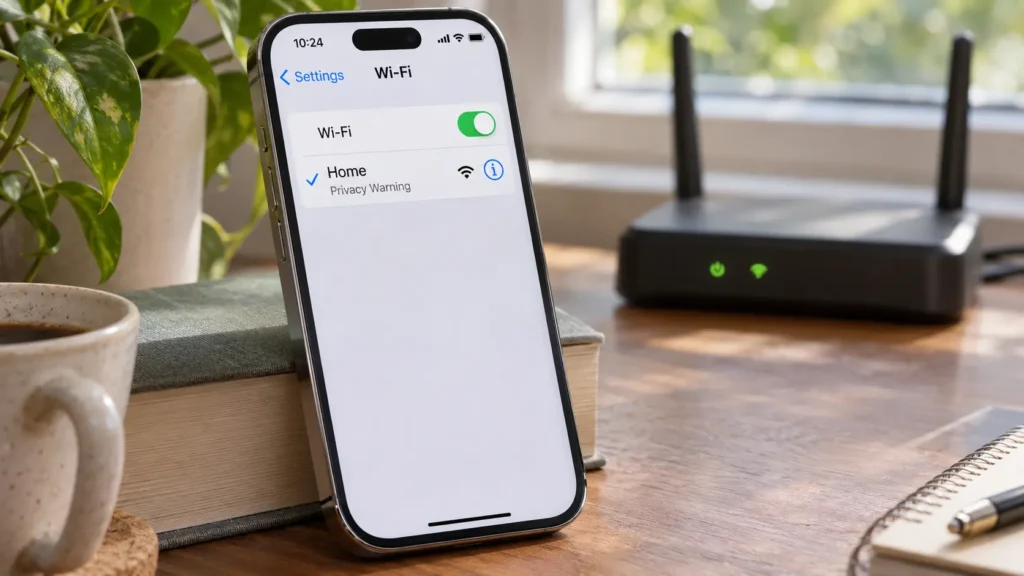
Open Settings → Wi-Fi, find the network with the checkmark, and tap the blue ⓘ beside its name. Read the sentence under Privacy Warning. If it says your private Wi-Fi address is turned off, you can usually fix it on that screen. If it says the network is blocking encrypted DNS traffic, the next step depends on who runs the network.
Your internet can work normally in either case. The warning describes a privacy issue, so loading a website tells you little about whether the issue has cleared. After making a change, return to the same network’s details and check the message again.
Match the Wi-Fi warning to the right fix
English wording can vary with the iOS version. Look for the sentence or label that matches yours most closely.
| What your iPhone shows | What it means | What to do first |
|---|---|---|
| “Privacy Warning” beneath the network name | This is the summary shown in the Wi-Fi list. | Tap ⓘ to read the explanation before changing anything. |
| “Private Wi-Fi address is turned off for this network.” | Your iPhone is identifying itself to this network with its hardware Wi-Fi address. | Open Private Wi-Fi Address. On iOS 18 or later, choose Fixed for a secure home network. On iOS 14–17, turn the switch on. |
| “This network is blocking encrypted DNS traffic.” | The names of websites and services your phone looks up may be visible on this network. | At home, check updates and the router guidance below. At work or school, ask the administrator whether DNS filtering is intentional. |
| “Weak Security” | The router uses an outdated Wi-Fi security mode. | Ask the owner to update the router’s wireless security. Changing your private address addresses a different issue. |
Fix a Private Wi-Fi Address warning
A Wi-Fi router needs a way to recognise each connected device. Your iPhone has a built-in identifier called a MAC address. If it presents that same identifier at home, at a café and at an airport, network operators can more easily associate those visits with the same device. A private Wi-Fi address gives your phone a separate identifier for each network. Changing it for your home Wi-Fi affects that network only.
Choose the right setting for your iOS version
- Go to Settings → Wi-Fi → ⓘ beside the connected network.
- Find Private Wi-Fi Address. On iOS 18 or later, tap the row to see Off, Fixed and Rotating. On iOS 14–17, turn on the private-address switch. An older release may label it Private Address.
- If the phone asks to rejoin, let it reconnect. Open the network details again. Confirm your selection and check whether the warning about the private address has cleared. If you now see a DNS message, follow the DNS steps below.
In Apple’s example, tap the row showing Private Wi-Fi Address · Fixed to see the address choices. Forget This Network, near the top, is a separate action.
| iOS 18 or later setting | When it makes sense | What changes |
|---|---|---|
| Fixed | A home or other trusted network using WPA2 or stronger security. This is Apple’s default when joining a new network with that level of security. | The router sees a stable private address. Your iPhone uses a different identifier on other networks. |
| Rotating | An open or weakly secured network, such as password-free guest Wi-Fi. This is Apple’s default for a new network with weak or no security. | The private address changes every two weeks, making repeat visits harder to associate with one device. |
| Off | A specific network has a confirmed compatibility requirement, or your organisation manages the setting. | The network sees the phone’s hardware address. This can bring back the privacy warning. |
Apple recommends installing available software updates and testing the connection again before turning private addressing off for compatibility.
What if your router reports a new device?
Suppose you choose Fixed at home and immediately receive a “new device joined” alert from your router. The timing makes sense. Your router may be seeing your iPhone’s private address for the first time. Open the network details on the phone and compare its Wi-Fi Address with the device entry in your router app.
If your family uses device-specific access rules, check which entry those rules apply to. For example, a bedtime schedule attached to the old address may need to be assigned to the iPhone’s new entry. A fixed private address gives the router a consistent identifier for that purpose while preserving the phone’s separate identity on other networks.
Fix “This network is blocking encrypted DNS traffic”
DNS is the lookup your phone uses to find a service by name. When you visit example.com, your phone needs an address for that domain. Encrypted DNS protects the lookup on its way to the DNS provider. Apple says that when a network blocks encrypted DNS, the names your phone looks up may be visible to devices monitoring that network.
The distinction matters if you are worried about what someone can see. A lookup can reveal the domain of a health website, for example. It does not contain the article you read there, the words you typed into a form or your password. The warning also cannot tell you whether anyone actually recorded the lookup. Changing Private Wi-Fi Address affects how the router recognises your phone. It does not change how the network handles DNS.
On home Wi-Fi, check the phone and router in order
- Check for an iPhone update. Open Settings → General → Software Update and install an available update for your model. Restart the iPhone, reconnect to your home Wi-Fi and reread the warning. This lets you test the phone before changing a setting that affects everyone at home.
- Check the router’s software. Use the manufacturer’s app or the management page listed in its instructions. Look for Firmware Update or Router Update. If your internet provider manages the equipment, ask whether it installs updates automatically. Restart the router when a brief household outage is convenient, then test the same network again.
- Review wireless security. Apple recommends WPA3 Personal where supported. WPA2/WPA3 Transitional lets older devices connect, and WPA2 Personal (AES) is an option when newer modes are unavailable. If you change this setting, test older household devices as well as the iPhone. A modern security mode addresses Wi-Fi encryption, but a separate DNS restriction can still need attention.
- Check for intentional DNS filtering. Did the message first appear after you enabled a family filter or changed an internet-provider security setting? Check that feature’s documentation or ask the provider whether it restricts encrypted DNS. A filter may rely on seeing domain lookups. Establish what the setting protects before switching it off.
If the warning persists, try another trusted Wi-Fi network. A warning confined to home gives your provider a specific connection to investigate. Tell support the exact message, your router model, whether it affects the main or guest network, and which updates or restarts you have already tried. Apple also recommends contacting your ISP or DNS provider when the warning continues.
On public, workplace or school Wi-Fi, use the network owner’s help
Imagine that a hotel’s Wi-Fi loads its sign-in page and your email works afterward, but the DNS warning remains. Signing in gave your phone internet access. It did not establish how the hotel handles DNS. If you prefer to keep a lookup off that network, turn off Wi-Fi in Settings and use mobile data. Travellers on a limited allowance can check data usage on their iPhone.
At work or school, send IT the warning text and the network name, and mention whether the internet still works. Ask whether the network requires its own DNS filter or a registered device address. On an organisation-managed iPhone, a management profile can control private addressing for a particular network. If the option is locked, IT can confirm the intended setting.
When should you forget the network or reset network settings?
Forgetting one network can help after its router settings change. First, make sure you can sign in again. Forgetting removes the saved network and its password. If your Apple devices share passwords through iCloud Keychain under the same Apple Account, they can forget that network too. Rejoining may also give your iPhone a different private address, which matters on networks that register devices.
When you have the password, go to Settings → Wi-Fi → ⓘ → Forget This Network and confirm. Choose the network again, sign in and reread its details. If your only goal is to stop reconnecting to a café hotspot, turn off Auto-Join on that screen instead. This preserves the saved password for a future visit.
Reset Network Settings is a last step for broader connection trouble, such as an iPhone that struggles to join several known-good networks. A reset removes saved Wi-Fi networks and passwords and resets cellular settings, along with VPN and APN settings you may need for work or mobile access. Check with IT first on a managed phone. A reset cannot change a hotel or school’s DNS policy. Apple Support
If those wider symptoms apply and you have the credentials to reconnect, the path on current iOS versions is Settings → General → Transfer or Reset iPhone → Reset → Reset Network Settings. Rejoin a trusted network and test both internet access and the warning. If the phone still cannot connect to any Wi-Fi network, contact Apple Support.
Frequently asked questions
Does a Wi-Fi privacy warning mean my iPhone was hacked?
The warning alone gives you no evidence of a break-in. It identifies a condition iOS can detect, such as a disabled private address or a network blocking encrypted DNS. The sentence under Privacy Warning tells you which condition to investigate.
Why do I see the warning at home but nowhere else?
Your iPhone remembers private-address settings separately for each network, and your home router can have a different DNS policy from other routers. Another possibility is a hidden home network. If the message mentions a hidden network, Apple recommends enabling the router’s network-name broadcast. Depending on the model, that means turning Hide SSID off or Broadcast SSID on. Keep password protection enabled.
Will typing a different DNS server into my iPhone fix the warning?
Entering a server address changes where lookups go. Encryption also requires a supported encrypted connection to that service, and the network may restrict it. If the warning keeps returning, ask the network owner whether encrypted DNS is allowed before trying different server addresses.
Final words
The most useful check is the sentence beneath Privacy Warning. If it names the private address, review that network’s address setting on your iPhone. If it names encrypted DNS, check the router you control or share the message with the person who manages it. Once you reconnect, open ⓘ beside the same network and confirm whether that specific warning has cleared.