
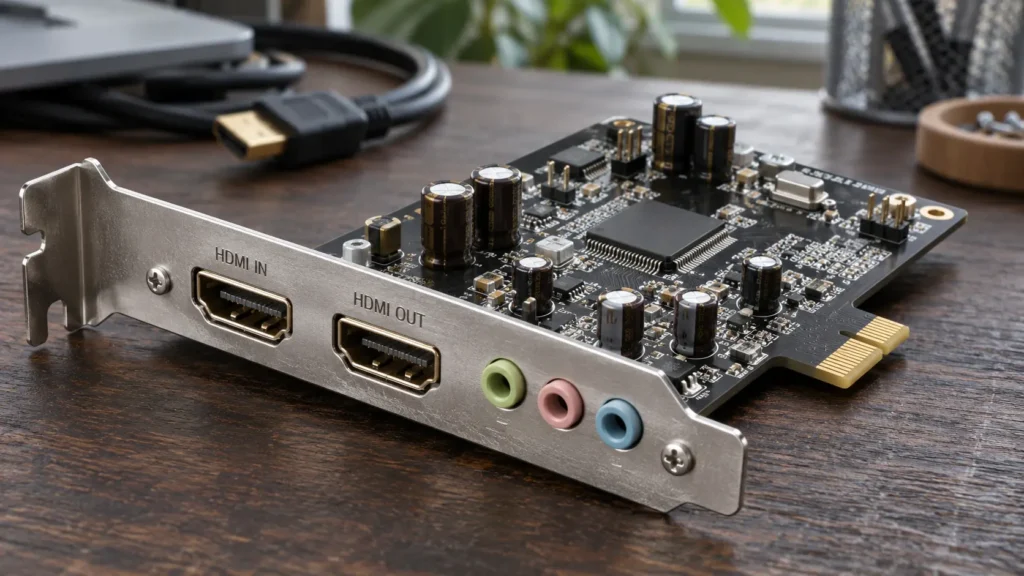
If you want to hear your desktop PC through a TV, start with the HDMI output you already use for the picture. Connect the graphics card to the TV, select that TV under Settings → System → Sound → Output, and play a test sound. Most modern desktops with an audio-capable HDMI output can send picture and sound through the same cable. A separate PCIe sound card usually adds nothing to this connection.
Two other goals call for different hardware. To record an external HDMI source, such as a console, you need a capture device with an HDMI input. To keep using existing speakers, look at their inputs first. A pair of powered speakers with a 3.5 mm socket may plug straight into the PC, even while HDMI carries the picture to your TV.
Which connection fits your equipment?
Read the labels beside the sockets before you shop. HDMI OUT sends a signal. HDMI IN receives one. A socket marked ARC or eARC has a special role when a TV sends sound back to a soundbar or AV receiver.
| What you want to do | How to connect it | What to check first |
|---|---|---|
| Play PC sound through TV speakers | PC HDMI OUT → TV HDMI IN | Select the TV as the PC’s playback device and enable the TV speakers. |
| Play games through a surround receiver | PC HDMI OUT → receiver HDMI IN → receiver HDMI OUT → TV | Check the receiver’s multichannel audio support and maximum video refresh rate. |
| Use a soundbar with only an ARC/eARC socket | PC → TV HDMI IN, then TV ARC/eARC → matching soundbar socket | Check which formats the TV can forward from an external HDMI input. |
| Keep powered desktop speakers | PC line out → speaker line in, with a separate HDMI cable to the display | Select Speakers in Windows. Check whether the speakers take 3.5 mm or RCA. |
| Feed an older amplifier from an HDMI source | Source → HDMI audio extractor → display, with optical or analog audio to the amplifier | Match the extractor’s output to the amplifier and its video rating to the display. |
| Record a console or second PC | Source HDMI OUT → capture card HDMI IN, then card HDMI OUT → display | Check recording resolution, supported audio and operating system. |
What does a PCIe audio card with HDMI actually do?
PCIe describes the slot a card uses inside the desktop. It tells you little about which signals the external sockets accept. A graphics card, sound card and capture card can all occupy PCIe slots while doing three different jobs.
A graphics card generates the picture and can send digital audio alongside it. Windows may identify the playback device by the TV or receiver model, while its properties name the graphics vendor’s audio driver. That explains why updating the motherboard’s analog audio driver may leave an HDMI sound problem untouched.
A dedicated sound card makes sense when you need one of its particular connections, such as several analog outputs for powered surround speakers. A genuine historical HDMI example is the ASUS Xonar HDAV1.3 Deluxe. Its design took video from the graphics card into the Xonar’s HDMI input, then sent the combined signal from the Xonar’s HDMI output to the display or receiver. That input belonged to the playback path. Buying the card to record a console would be a mistake.
A capture card brings an external source into recording software. For example, Elgato’s Game Capture 4K Pro accepts an unencrypted HDMI input. Its HDMI output passes that incoming signal to a display so you can play while recording. If you simply want to record a tutorial on the same desktop, try software capture first. Our guide to recording software for audio, screen capture and video explains which applications suit each job.
How to set up HDMI audio output on a PC
- Connect the active graphics output. If your TV already shows the Windows desktop, keep that connection. For a new setup with a dedicated graphics card, start with the HDMI socket on the card’s rear bracket. A motherboard HDMI socket depends on the PC having working, enabled integrated graphics.
- Switch on the receiving equipment. Choose the numbered HDMI input you connected. If the cable runs through a receiver, select the PC’s input on the receiver and the receiver’s input on the TV.
- Choose the playback device. In Windows 11, open Settings → System → Sound. Under Output, select the TV, monitor or receiver. Start at a modest volume and play a familiar stereo clip. If a headset still plays the sound, check the application’s output in Volume mixer.
- Check the available speaker layouts. Open More sound settings → Playback, select the HDMI device and choose Configure if available. Start with Stereo. For a surround receiver, select 5.1 or 7.1 if offered, then run the speaker test. Listen for each tone at the speaker highlighted on screen.
- Inspect the reported formats. In that same Playback window, open the device’s Properties. Where the driver provides it, Supported Formats lists encoded formats the connection reports. The Advanced tab’s default format controls the normal shared playback format. Choosing a higher sample rate there does not enable Dolby TrueHD or add rear channels. Menu options vary by driver.
If the TV appears under Display but never under Sound, check the graphics driver’s audio settings. On supported NVIDIA systems, open NVIDIA Control Panel → Display → Set up digital audio. Select the connected display for that HDMI port, apply the change, then reopen Windows Sound settings.
Choosing between PCM, bitstream and TV audio passthrough
PCM is audio that has already been decoded into samples. It can carry two-channel stereo or discrete surround. In a 5.1 setup, five main channels handle positions around the listener and the “.1” carries low-frequency effects. A game can send those channels as multichannel PCM. A receiver displaying Multi Ch In or PCM can therefore be playing genuine surround even when no Dolby logo lights up.
Bitstream passthrough sends an encoded soundtrack to a receiver or soundbar for decoding. For a film with a Dolby TrueHD track, choose that track in the player, enable passthrough for the format, and check the receiver’s input signal information. This is a better test than looking at its listening mode. An upmixing mode can make rear speakers play even when the incoming track is stereo.
When ARC or eARC changes the result
Consider a living-room PC connected directly to a 4K TV, with a soundbar below it. The PC sends audio and video into an ordinary TV HDMI input. The TV then sends audio back through its ARC or eARC port to the matching port on the soundbar. Reserve that labelled TV port for the bar. On a bar with a separate conventional HDMI IN, connecting the PC directly to that input is another option.
Standard ARC generally handles stereo PCM and selected compressed surround formats. eARC adds the bandwidth for uncompressed 5.1 or 7.1 PCM and high-bitrate soundtracks such as Dolby TrueHD. Check the TV manual specifically for passthrough from external HDMI inputs. If a built-in streaming app produces surround, that proves the app’s format works over the return connection. A PC game sending 5.1 PCM is a separate test. What is eARC? Audio Return Channel
For a gaming PC, write down both targets, such as 4K at 120 Hz and 5.1 PCM. An older receiver between the PC and TV may handle the audio perfectly while limiting the picture to 60 Hz. Connecting the PC directly to the TV preserves the direct video path. Whether you also keep game surround depends on the TV, its passthrough settings and the audio system at the other end.
What is worth buying?
For ordinary TV playback, budget for the cable first. If your existing HDMI cable delivers the desired picture and the TV appears as a playback device, test stereo before spending anything. If the PC has only DisplayPort available, look for a DisplayPort-to-HDMI adapter that explicitly supports audio and the TV’s resolution and refresh rate. Confirm the conversion direction on the listing. nvidia.com
For an older amplifier, price an extractor against a direct analog cable. An extractor is useful when the sound must come from the HDMI feed, particularly if several sources share the same equipment. As a price reference, StarTech’s US catalogue listed its HD202A in stock at US$86.09 when checked for this guide. It offers 4K/60 Hz video passthrough, optical audio and stereo RCA. Its 60 Hz ceiling matters if you own a 120 Hz gaming TV. For powered speakers beside the PC, check the desktop’s line output before paying for that box.
For recording, check the slot and OS before the price. Elgato lists the Game Capture 4K Pro for 64-bit Windows 10 or later and specifies four PCIe 2.0 lanes. Check the motherboard manual because a physically long slot may have fewer lanes available. Also read capture and passthrough limits separately. This model supports recording up to 4K/60 while passing through higher supported display modes. Its official specifications list Windows support, an important constraint for a Linux recording PC.
Treat the ASUS Xonar HDAV1.3 Deluxe as discontinued hardware. ASUS retains manuals and historical driver downloads, and Australian retailer PC Case Gear marks the Deluxe discontinued. For a second-hand listing, ask for the exact model, included accessories and evidence of playback on your intended OS. For an overseas purchase, calculate the delivered price in your currency, including shipping and applicable taxes. Check who handles returns and whether the manufacturer honours the warranty in your country. An archived support page establishes neither local stock nor current driver compatibility.
Troubleshooting HDMI picture with missing or incorrect sound
| Symptom | What to try |
|---|---|
| The TV shows Windows, but sound comes from the desk | Select the TV under Sound → Output. If only one app uses the desk speakers, check its output in Volume mixer. Microsoft Support |
| The HDMI playback device disappears when the TV is off | Turn on the TV and receiver, select their inputs, and check that Windows still has the display enabled. The graphics driver uses the active display connection to make its audio device available. |
| The receiver supports 5.1, but Windows offers only stereo | Temporarily connect the PC directly to the receiver. If 5.1 appears, inspect the TV’s external-input passthrough settings and ARC/eARC capabilities. What is eARC? Audio Return Channel |
| Windows test sounds work, but a movie is silent | Disable bitstream passthrough in the player and try stereo PCM. If sound returns, check the selected soundtrack against the formats supported along that route. dlcdnets.asus.com |
| Sound stopped after adding an extractor, adapter or switch | Remove that device temporarily and retest the original direct connection. Reconnect one device at a time so you can identify which change affects playback. |
FAQs
Can I keep my gaming monitor on DisplayPort and use HDMI for receiver audio?
Often, yes. Connect the monitor to DisplayPort and the receiver to a spare HDMI output. Windows may detect the receiver as a second display. Keep that connection active, select the receiver under Sound, and confirm your gaming monitor remains the main display. Disabling the receiver’s display connection can also remove its playback device.
Will an expensive sound card improve HDMI sound through my receiver?
If the receiver already gets the intended digital soundtrack, its own electronics handle digital-to-analog conversion and amplification. A sound card’s upgraded analog outputs benefit equipment connected to those outputs. For HDMI playback, first check the receiver’s incoming format, speaker configuration and levels.
Can I connect passive speakers directly to an HDMI audio extractor?
An extractor with analog line outputs can feed powered speakers or an amplifier’s line input. Passive speakers with bare-wire terminals still need amplification. Look at the back of the speakers before ordering. A stereo RCA output is a useful match for an amplifier labelled AUX IN or LINE IN.
Final Words
Choose the connection by tracing the sound from its source to the device that will play it. For a desktop and TV, try the graphics card’s HDMI output and a stereo test. For a home theatre, verify one game or film in the surround format you actually use. Buy extra hardware when you can name the missing function, whether that is an optical feed for an older amplifier, analog outputs for powered speakers, or an HDMI input for recording.