
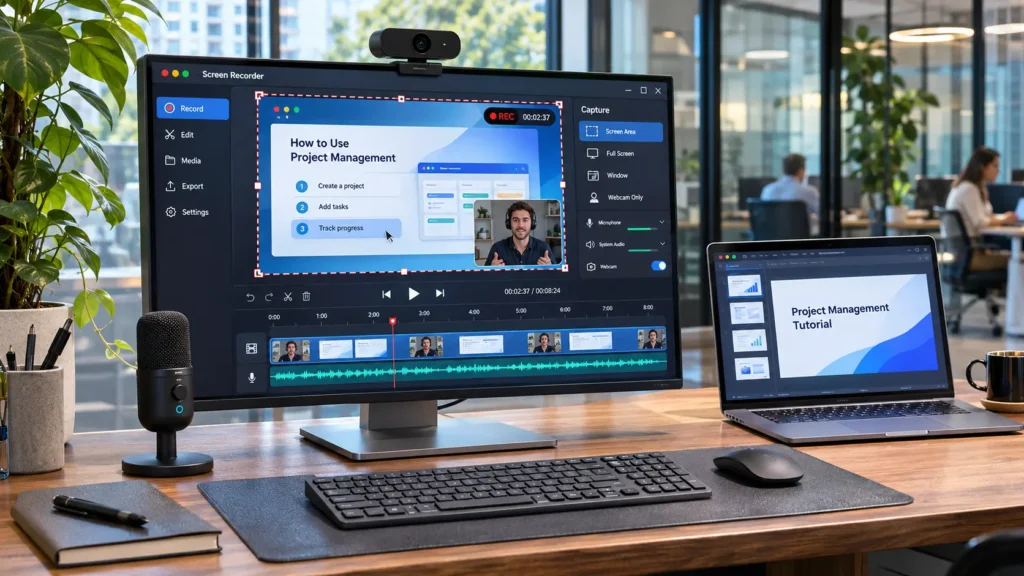
OBS Studio is a strong free choice for gameplay and flexible screen capture. Camtasia suits edited tutorials, Loom makes short work updates easy to share, and ScreenPal offers approachable recording and editing. For occasional clips, your computer’s built-in recorder may be enough.
The right choice depends on what happens after you press Stop. A quick explanation for a colleague needs different tools from a polished training lesson or a gameplay video with separate commentary.
This guide uses official product information checked in November 2026. Selections reflect features, restrictions, and practical workflows rather than firsthand performance testing.
Which Screen Recording Software Should You Choose?
| Software | Best fit | Desktop or browser availability | Cost model | Main limitation |
|---|---|---|---|---|
| OBS Studio | Gameplay and flexible recording | Windows, macOS, Linux | Free, open source | Requires setup; editing is separate |
| Camtasia | Tutorials and training videos | Windows, macOS | Free watermarked Editor; paid subscriptions | Watermark-free Editor exports require a qualifying plan |
| Loom | Short explanations and team updates | Windows/macOS apps; supported browser extension | Free tier; paid subscriptions | Starter screen recordings have a five-minute limit |
| ScreenPal | Lessons and straightforward demonstrations | Windows, macOS; Chromebook and mobile options | Free tier; paid subscriptions | Free desktop recording excludes system audio |
| ShareX | Short clips, GIFs, and repeatable capture tasks | Primarily Windows | Free, open source | Less suited to polished presenter-led lessons |
| Built-in recorders | Occasional screen clips | Windows Snipping Tool; macOS Screenshot | Included with the operating system | Limited production and editing controls |
These options cover different jobs rather than forming a universal ranking. If your project also involves voiceovers, interviews, or music, see broader recording software guide.
Best Screen Recording Tools by Use Case
1. OBS Studio: Best Free Option for Gaming and Flexible Capture
OBS Studio combines display or window capture, webcams, microphones, and other sources into configurable scenes. It runs on Windows, macOS, and Linux, making it a useful starting point when you need a capable recorder without a subscription.
For gameplay, you can build a layout containing the game and a webcam overlay. For teaching, create separate scenes for slides and software demonstrations.
OBS records locally without a paid-plan watermark or recording-time allowance. Available storage and computer performance become the practical limits. However, it is primarily a recording and live-production tool; detailed cutting, captions, and instructional callouts usually require another editor.
A useful workflow is to record in MKV, then use OBS’s built-in remux function to create an MP4. Remuxing changes the container without re-encoding the video, and OBS recommends MKV because an interrupted recording is less likely to lose the entire file.
Choose OBS when: you want control over recording quality, sources, and audio, and can spend time configuring a test session.
2. Camtasia: Best for Edited Tutorials and Training
Camtasia brings screen recording and video editing into one workflow. Its multitrack approach lets you work with screen footage, camera video, and audio independently. Cursor editing helps direct attention toward the button or menu being explained.
For example, a software trainer can record a process, remove mistakes, enlarge an important interaction, and add supporting text before exporting the lesson.
The main purchasing trap is assuming every paid Camtasia plan removes the Editor watermark. Starter does not include watermark-free Editor exports; Essentials, Create, and Pro do. Check the specific application and entitlement within the bundle.
Pricing is regional. During research, TechSmith’s store displayed Essentials at ₹7,399 per year, billed yearly, in an INR storefront. That is a regional reference, not a worldwide price.
Choose Camtasia when: you regularly produce instructional videos and integrated editing saves enough time to justify the subscription.
3. Loom: Best for Quick Work Updates
Loom suits bug reports, project feedback, onboarding explanations, and short product walkthroughs. Its main advantage is the path from recording to a shareable video page.
The free Starter plan lists 25 recordings and a five-minute screen-recording limit. Treat the recording allowance as a library limit, not 25 fresh recordings every month. The pricing page lists Business at US$18 per user per month, with annual billing discounts available.
Downloading videos and removing Loom branding from video pages and embedded players are paid features. This branding is different from a watermark burned into the recording itself.
Desktop apps are available for Windows and Mac. The browser extension provides another route, but browser and desktop capabilities differ; do not assume the extension works in Firefox or Safari.
Choose Loom when: sharing a focused explanation matters more than advanced timeline editing.
If the task involves a live discussion, Google Meet vs Zoom guide can help you decide whether meeting software better fits the workflow.
4. ScreenPal: Best for Straightforward Lessons
ScreenPal offers screen, webcam, and combined recording, along with trimming and annotation tools. You can record a selected area, window, or full screen.
Its free recorder supports microphone narration and sessions up to 15 minutes. On Windows and Mac, recording computer audio requires a paid plan. That matters when demonstrating software that produces sound or including a video clip within a lesson.
Deluxe is listed at US$4 per month, paid annually, equivalent to US$48 for a year before applicable taxes.
Storage deserves a careful check: the plan table lists 10 hosted videos for Free, while an FAQ on the same page still mentions unlimited hosting. Use the more restrictive allowance for planning and confirm the entitlement in your account. Creating unlimited local recordings does not necessarily mean unlimited cloud storage.
Choose ScreenPal when: you want an approachable lesson-recording workflow and can work within the free audio and duration restrictions or upgrade.
5. ShareX: Best for Short Clips and Capture Workflows
ShareX is a free, open-source capture tool aimed primarily at Windows users. It supports screen recordings, animated GIFs, configurable hotkeys, and automated tasks.
A support specialist might use it to capture a short software problem, save the file, and reuse the same workflow for the next ticket.
Its strength is efficient capture rather than producing a complete narrated course. Also, screenshot annotation features should not be mistaken for a full video editor.
ShareX supports numerous interface languages, including Arabic, English, French, German, Hindi, Japanese, and Spanish. Its configurable upload destinations are useful, but review them before recording confidential information.
Choose ShareX when: you frequently need concise clips or GIFs and value configurable capture tasks.
6. Built-In Recorders: Best for Occasional Clips
Before installing another application, check what your computer already provides.
On supported Windows systems, Snipping Tool includes screen recording. Microsoft also provides a route to Clipchamp for further editing, captions, and audio work.
On Mac, press Shift–Command–5 to open Screenshot controls. Apple supports recording the whole screen or a selected portion, with microphone selection available in the recording options.
These tools suit a quick demonstration or troubleshooting clip. Check audio options on your particular operating-system version rather than assuming microphone and computer sound are both included.
Choose a built-in recorder when: you need a simple clip and have little editing to do afterward.
Features That Matter Before You Pay
Capture Area and Webcam Placement
Full-screen capture is convenient when moving between applications, but it can expose unrelated windows and make interface text appear small.
Window capture keeps attention on one application. Selected-area capture works well for a specific panel, although menus opening outside that area may be missed.
Place a webcam overlay where it will not cover navigation, captions, or important controls. Record a short sample that includes every menu you intend to demonstrate.
Microphone and System Audio
Microphone audio captures your voice. System audio captures sound produced by your computer. A recorder supporting one does not guarantee support for both.
Browser recording adds another variable: sharing a tab, window, or entire display may expose different audio options.
On Mac, OBS’s documentation describes native audio capture options for macOS 13 and later; older configurations may require additional routing software.
For tutorials or gameplay, separate microphone and application-audio tracks can help you adjust the balance later. Confirm your editor can access those tracks before relying on them.
Resolution, Frame Rate, and Performance
Start with 1080p at 30 frames per second for software tutorials. For fast gameplay, try 60 fps if your computer can sustain it.
These are starting points, not quality guarantees. Tiny text remains difficult to read even in a high-resolution recording. Enlarge the application interface and show only the relevant area.
Higher resolution and frame rates increase processing and storage demands. Hardware encoding can reduce CPU pressure, but recording still competes with games, browsers, and other applications for resources.
Editing, Cursor Effects, and Export
Useful editing features include trimming, zooming, cursor highlighting, captions, and covering sensitive information.
Check whether cursor effects remain editable after capture or become permanently embedded in the footage. Editable effects provide more flexibility when correcting a lesson.
For delivery, MP4 with H.264 video is a practical starting point. Keep the original recording and editable project as well. A project file alone may not contain all the media needed to reopen it elsewhere.
Local Recording, Cloud Sharing, and Real Costs
Local recording saves files to your device. Cloud sharing hosts recordings online so viewers can open a link.
Neither automatically provides a backup. Local drives can fail, while cloud accounts can have storage limits, retention rules, or restricted downloads.
Before subscribing, check:
- Recording duration and watermark rules.
- Hosted-video count or storage allowance.
- Download access and export resolution.
- Per-user charges and annual commitments.
- Whether cancellation affects access to existing recordings.
A monthly headline price may require an annual payment. A one-time or perpetual license, when offered, may cover only a particular version and a limited update period.
For worldwide use, verify billing currency, accepted payment methods, regional availability, taxes, and foreign-exchange charges. Also distinguish interface languages from transcription languages: Loom advertises transcription in more than 50 languages, which does not mean every interface or editing feature supports all of them.
A Practical Workflow for Clear, Private Recordings
- Prepare a demonstration account. Replace real customer details, passwords, and financial information with sample data.
- Close unrelated applications. Disable notifications and check browser tabs, bookmarks, and desktop filenames.
- Grant only the permissions needed. Screen, microphone, and camera access can be separate controls. macOS also provides screen and system-audio recording permissions.
- Record a 30-second test. Include narration, computer audio, scrolling, and a menu opening.
- Inspect the saved result. Check text readability, audio balance, cursor visibility, and dropped frames.
- Review before sharing. Remove accidental disclosures and verify who can access the link.
For recurring tutorials, use project management software to track scripts, recording sessions, reviews, and publication dates.
FAQs
What is the best free screen recording software without a watermark?
OBS Studio is a strong option for flexible local recording without a watermark or subscription-based duration limit. Built-in Windows and Mac recorders are simpler alternatives for occasional clips.
Which screen recorder is easiest for beginners?
A built-in recorder is often enough for basic capture. Loom suits short shared explanations, while ScreenPal offers a more guided recording-and-editing workflow. Choose according to the finished result you need.
Can I record my screen and webcam together?
Yes. OBS, Camtasia, Loom, and ScreenPal support screen-and-camera workflows. Check placement controls and whether the webcam remains separately editable afterward.
Why does my screen recording have no sound?
The wrong microphone may be selected, system audio may be disabled, or the application may lack permission. Browser capture mode and paid-plan restrictions can also affect audio. Test each source separately.
Can screen recording software work offline?
Local tools such as OBS can record without uploading footage. Cloud sharing, account verification, automatic transcription, and some editing features may still require an internet connection.
Final Words
Choose around one real task: OBS for flexible free capture, Camtasia for edited instruction, Loom for quick sharing, or ScreenPal for straightforward lessons. ShareX and built-in recorders cover many smaller jobs.
Before paying, complete one short recording from capture through export. The best screen recording software is the tool that reliably produces readable video, clear audio, and a file or link your audience can use.