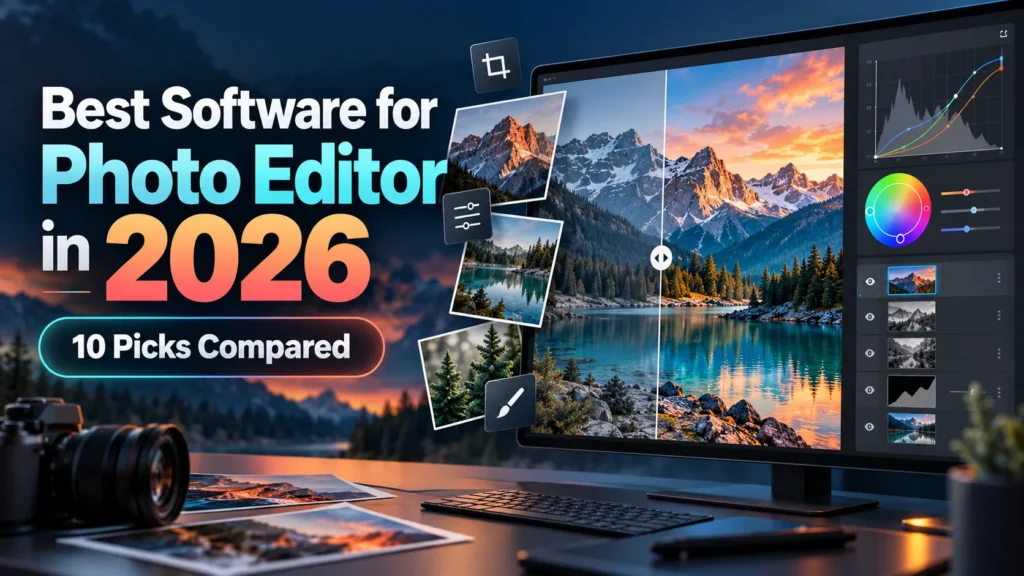
A while ago I watched a friend spend three hours in Photoshop trying to brighten a few vacation photos. She gave up, opened her phone’s built-in editor, and had it done in four minutes.
Her problem wasn’t skill. She had picked the wrong tool for the job, and that’s the most common mistake people make with photo editing software. The best photo editor isn’t the most powerful one. It’s the one that matches the work you actually do.
Below are ten editors I’ve used or tested properly. For each one I’ll say who it suits and where it lets you down.
Before You Pick: Two Types of Photo Editors
Most beginners don’t realize that “photo editing” covers two quite different jobs.
Photo Development (Organizing + Color Correction)
This means adjusting exposure, white balance, contrast, and color, often across hundreds of images. Lightroom, Capture One, and darktable are built for it. They’re non-destructive, so your original file is never changed.
Pixel Editing (Retouching + Compositing)
This covers removing objects, swapping skies, blending images, and building graphics. Photoshop, Affinity, and GIMP live here. They use layers and masks and give you precise, pixel-level control.
One thing I’ve noticed: people buy a pixel editor when they really need a development tool, then wonder why editing 200 wedding photos takes all weekend.
So which kind of work fills most of your editing time?
1. Adobe Photoshop: The Industry Standard for Retouching
Photoshop is still the reference point every other image editor gets measured against. Its layers, masks, blend modes, and selection tools are mature and reliable. The AI-powered Generative Fill and Remove tools have changed how fast cleanup work gets done.
Best for: Professional retouchers, designers, compositors, and anyone working in an agency.
Strengths:
- Precise selection and masking
- Generative AI features for object removal and canvas expansion
- Huge ecosystem of plugins, brushes, and tutorials
The downside: It’s subscription-only, and the learning curve is steep. If all you do is crop and adjust brightness, you’re paying for a cockpit to drive to the grocery store.
A common mistake: Beginners edit directly on the background layer. Duplicate it first (Ctrl/Cmd + J), or use adjustment layers, so you can always go back.
2. Adobe Lightroom: Best for Photographers With Large Libraries
If you shoot in RAW and come home with 500 images, Lightroom is where you’ll spend most of your time. It handles cataloging, keywording, batch edits, and color grading all in one place.
Best for: Wedding, event, travel, and portrait photographers.
Strengths:
- Presets and syncing edits across many photos at once
- AI masking for subject, sky, and background in one click
- Cloud sync between desktop and mobile (Lightroom vs. Lightroom Classic is a real choice; Classic is better for local file control)
This becomes a problem when you need heavy retouching. Lightroom’s healing tools have improved, but complex cleanup still sends you over to Photoshop.
3. Affinity by Canva: Best Free Professional Alternative
Affinity used to be three separate paid apps: Photo, Designer, and Publisher. After Canva acquired it, the suite was rebuilt into a single app and made free to use, with some AI features tied to a Canva Pro subscription.
Best for: Freelancers, small businesses, and anyone who wants Photoshop-level tools without a monthly bill.
Strengths:
- Professional layers, masks, live filters, and RAW support
- Photo editing, vector design, and layout in one workspace
- Fast performance even on modest hardware
The reality is that most client work never needs anything Photoshop has and Affinity lacks. Where it falls short is collaboration. If your agency sends you layered PSDs with smart objects, compatibility won’t always be perfect.
4. Capture One: Best for Color Accuracy and Studio Work
Fashion and product photographers love Capture One for a reason. Its RAW processing and color tools are among the best available, and tethered shooting (camera connected straight to the computer) is rock solid.
Best for: Studio, commercial, and product photographers.
Strengths:
- Excellent skin tone and color editing
- Industry-leading tethered capture
- Layer-based local adjustments
The downside: It’s expensive, and the interface takes time to get used to. For casual shooters it’s overkill.
5. GIMP: Best Truly Open-Source software for photo editor
GIMP has been around since the 90s and runs on Windows, macOS, and Linux. Version 3.0 finally brought non-destructive filters and a cleaner interface, which fixed two of its oldest complaints.
Best for: Students, Linux users, and anyone on a zero budget who wants real layer editing.
Strengths:
- Completely free, with no account or ads
- Scripting and plugin support
- Lightweight installation
What most people don’t realize: GIMP isn’t a “free Photoshop,” and expecting it to behave like one is what frustrates people. The shortcuts and workflow are different. Give it a week of learning on its own terms before deciding.
6. Luminar Neo: Best AI Software for Photo Editor for Fast Results
Luminar Neo leans heavily on AI. Sky replacement, portrait enhancement, relighting, and noise reduction mostly happen through sliders instead of manual masking.
Best for: Hobbyists, travel bloggers, and social media creators who want striking images quickly.
Strengths:
- One-click sky replacement that actually adjusts scene lighting
- Easy portrait retouching
- Works standalone or as a plugin
In my experience, this is where restraint matters most. AI sliders make it tempting to push everything to 80, and the result looks artificial. Set each slider where it looks good, then pull it back by about a third.
7. DxO PhotoLab: Best for Noise Reduction and Lens Correction
DxO built its reputation on optics. Its lab-measured lens and camera profiles correct distortion, vignetting, and softness automatically, and its DeepPRIME noise reduction rescues high-ISO shots other editors give up on.
Best for: Wildlife, astro, indoor sports, and low-light photographers.
Strengths:
- Exceptional RAW noise reduction
- Automatic optical corrections tailored to your exact lens
- U Point local adjustment technology
This works well when your camera and lens combination is in DxO’s supported database. Check that before buying, because an unsupported older or niche lens loses much of the advantage.
8. Darktable: Best Free Lightroom Alternative
Darktable is an open-source RAW developer with a surprisingly professional toolset: scene-referred color processing, masking, and a full digital asset manager.
Best for: Photographers who want Lightroom-style workflows without paying.
Strengths:
- Free and cross-platform
- Powerful color science (filmic and sigmoid tone mapping)
- Non-destructive editing with history stacks
The downside: It’s dense. There are dozens of modules, and some overlap. Start with only exposure, color calibration, and filmic or sigmoid, and ignore the rest until you need it.
9. Photopea: Best Browser-Based Software for Photo Editor
Photopea runs entirely in your web browser and looks a lot like Photoshop. It opens PSD, XCF, Sketch, and RAW files, and you don’t need to install anything.
Best for: Quick edits on borrowed computers, Chromebooks, students, and occasional users.
Strengths:
- Free with ads (a paid tier removes them)
- Familiar Photoshop-style interface and shortcuts
- Solid PSD compatibility
A real-world example: A small bakery owner I know edits her product photos for Instagram entirely in Photopea on a school-issued Chromebook. She doesn’t need anything else.
This becomes a problem when you’re editing large, high-resolution files. The browser starts to struggle with memory.
10. Canva: Best for Social Media Graphics and Simple Edits
Canva isn’t a dedicated photo editor, and that’s exactly why it belongs on this list. For many people, “editing a photo” really means adding text, cropping for Instagram, removing a background, and exporting.
Best for: Marketers, small business owners, and content creators.
Strengths:
- One-click background remover (Pro)
- Templates sized for every social platform
- Team collaboration and brand kits
The reality is that if your end goal is a social post or an ad, editing in Lightroom and then designing in Canva adds a step you may not need.
Bonus for mobile users: Snapseed (free, from Google) is still one of the most capable phone photo editors, with selective adjustments and healing tools that put many paid apps to shame.
Quick Comparison: Which Photo Editing Software Fits You?
| Your Situation | Best Pick |
|---|---|
| Professional retouching/compositing | Photoshop |
| Large RAW photo libraries | Lightroom Classic |
| Pro tools, no subscription | Affinity |
| Studio/tethered shooting | Capture One |
| Zero budget, layer editing | GIMP |
| Fast AI enhancements | Luminar Neo |
| Low-light/high-ISO shots | DxO PhotoLab |
| Free RAW development | darktable |
| No installation possible | Photopea |
| Social media content | Canva |
Common Mistakes When Choosing Software for Photo Editor
Buying for the photographer you want to be, not the one you are. If you shoot on a phone and post to Instagram, a full Creative Cloud plan is a monthly donation.
Ignoring your hardware. AI features and large RAW files need RAM and a decent GPU. Check minimum specs, especially on older laptops.
Switching tools every month. Each switch resets your muscle memory. Pick one, learn it properly for 30 days, and only then judge it.
Skipping free trials. Nearly every paid editor here offers a trial. Edit your own photos during it, not the sample images they hand you.
Have you ever paid for software you ended up barely opening? Most of us have.
Also Read: 10 Best Animation Software in 2026 (Free and Paid)
Actionable Tips You Can Apply Today
- Shoot RAW if your camera allows it. It gives you far more room to recover highlights and shadows.
- Calibrate your monitor, or at least turn off auto-brightness. Many “bad edits” are really a display problem.
- Edit in this order: crop → exposure → white balance → contrast → color → local adjustments → sharpening.
- Step away before exporting. Come back after 10 minutes. Over-saturation jumps out at fresh eyes.
- Build one personal preset from your best edit and use it as a starting point, not a final look.
Conclusion: Start Simple, Upgrade When You Hit a Wall
There’s no single best photo editing software. There’s only the best fit for how you shoot, what you deliver, and what you’re willing to pay.
If you’re unsure, start free with Affinity, darktable, or Photopea. You’ll know it’s time to upgrade when you hit a specific limit, like “I need tethering” or “I need better noise reduction.” That limit tells you exactly which paid tool to buy.
Your action step: Pick two editors from this list that match your situation, download their trials or free versions this week, and edit the same five photos in both. Within an hour you’ll know which one feels natural.
Which editor are you trying first?