
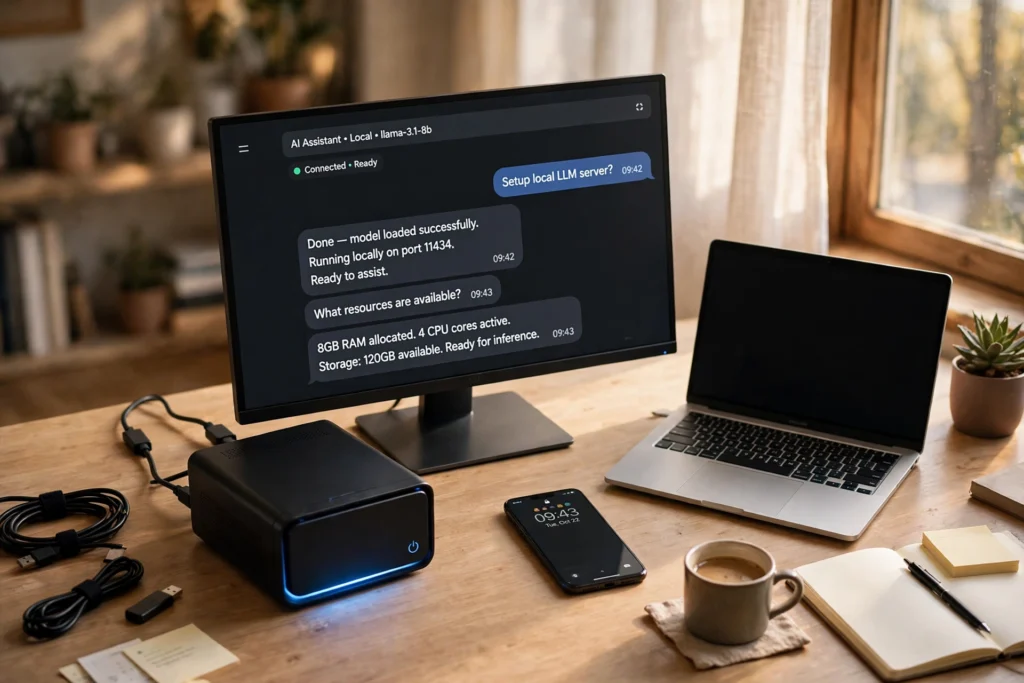
Cloud AI is easy, but it has a catch. Your chats, code, and documents travel to someone else’s computers. You also pay monthly for it.
You can set up a personal AI server at home instead. It runs on a machine you own. Your phone, laptop, and tablet connect to it over your home network. Nothing needs to leave your house.
This guide follows one clear path. We install Ollama to run the models, and Open WebUI for a friendly chat screen. Both are free and open source. We checked every command against the official Ollama and Open WebUI documentation on 25 November 2026.
Quick answer
To set up a personal AI server, you need one computer with at least 16 GB of RAM. Install Ollama, download a model, and add Open WebUI. Then open it from any device on your home Wi-Fi. The software costs nothing. Your only costs are hardware and electricity.
What a personal AI server actually does
A personal AI server is an ordinary computer with two pieces of software. The model runtime loads an AI model into memory. The chat interface lets your devices talk to that model.
Personal AI chats, summarises long text, and drafts emails. It explains code and fixes simple bugs. It answers questions about your own PDFs and notes.
Be honest about the limits, though. A home model is smaller than the biggest cloud models. It will lose on hard reasoning and rare facts. What you gain is privacy, no subscription, and full control.
The hardware you need
Memory decides everything here. The model must fit in memory, or it slows to a crawl. Use this table to match a machine to your plans.
| Setup | CPU | RAM | GPU memory | Storage | Best for |
|---|---|---|---|---|---|
| Old PC or laptop you own | Any modern 4-core | 16 GB | None needed | 256 GB SSD | First try, light chat |
| New mini PC | 6-core Ryzen or Intel | 32 GB | Integrated graphics | 512 GB SSD | Daily chat and documents |
| Dedicated GPU build | 6-core or better | 32 GB | 12–16 GB (NVIDIA) | 1 TB SSD | Coding help and bigger models |
Each model needs 2–20 GB of disk space, so keep at least 100 GB free. Prices vary by country and tax. In US dollars, a mini PC costs roughly $300–$600, and a GPU build $800–$1,500. A used office PC often costs under $200.
Four ideas that decide your experience
Model size. Models are measured in parameters, written as 7B, 14B, or 32B. Bigger usually means smarter and slower. An 8B model chats well. A 14B model writes better code. A 32B model needs serious memory.
Quantisation. This means shrinking the model to use less memory. Ollama’s default format, called Q4_K_M, stores each weight in about 4 bits. An 8B model drops from roughly 16 GB to about 4.7 GB. The quality loss is small for everyday work.
RAM versus GPU memory. A graphics card is much faster than a CPU. But the model must fit in GPU memory to get that speed. If half the model spills into system RAM, answers slow down sharply. This is the most common beginner mistake.
Context length. This is how much text the model can hold in mind at once. Ollama’s default is 4,096 tokens, roughly 3,000 words. That covers a long chat or a short document. It cannot hold a 40-page PDF. Document chat solves this with search, explained in Step 4 below.
Step 1: Check your hardware
On Linux, open a terminal and run these two commands:
free -h
nvidia-smi
The first shows your RAM. The second shows your GPU memory, if you have an NVIDIA card.
On Windows, open Task Manager and click Performance. It lists your RAM and your GPU’s dedicated memory. On a Mac, open “About This Mac”. Apple Silicon Macs share memory between CPU and GPU. A 16 GB Mac runs 8B models comfortably.
With 16 GB total, stay at 8B or below. With 32 GB, you can try 14B.
Step 2: Install Ollama
On Linux, run the official install command:
curl -fsSL https://ollama.com/install.sh | sh
The installer also creates a background service that starts Ollama at every boot. That is what makes it feel like a server.
On Windows or macOS, download the installer from ollama.com instead. Run it like any other app. Ollama then sits in your system tray or menu bar.
Check the install worked:
ollama -v
curl http://localhost:11434
The second command should reply “Ollama is running”. Your server engine is ready.
Step 3: Download your first models
Download one model for each job:
ollama pull llama3.1:8b
ollama pull qwen2.5-coder:7b
ollama pull nomic-embed-text
Llama 3.1 8B is a solid general chat model. It downloads about 4.7 GB. Qwen 2.5 Coder 7B is trained for programming help. Nomic Embed Text is tiny, at 274 MB. It powers document search later.
Test the chat model right away:
ollama run llama3.1:8b
Ask it anything, then type /bye to leave. If it answers, your server works.
One legal note: Every model has its own licence. Llama uses Meta’s community licence. Many Qwen and Mistral models use the permissive Apache 2.0 licence. Personal use is fine in both cases. Check the model’s page in the Ollama library before any commercial use.
Step 4: Add Open WebUI for chat and documents
A terminal is fine for testing, but not for daily use. Open WebUI gives you a proper chat screen in the browser, plus user accounts and document uploads.
First install Docker. Use Docker Desktop on Windows or macOS. Use Docker Engine on Linux. Then run the official command:
docker run -d -p 3000:8080 --add-host=host.docker.internal:host-gateway -v open-webui:/app/backend/data --name open-webui --restart always ghcr.io/open-webui/open-webui:main
Open http://localhost:3000 in your browser. Create the first account. That account becomes the administrator. Next, open the admin settings and turn off new sign-ups. Now only people you add can log in.
For documents, upload a PDF inside any chat. Open WebUI splits it into chunks. The embedding model finds the chunks that match your question. Only those chunks go to the chat model. That is how a small context window handles a long file. For coding, pick the Qwen Coder model in the same chat window and paste your code.
Step 5: Reach it from your phone and laptop
Find the server’s home network address. On Linux, run hostname -I. On Windows, run ipconfig. You will see something like 192.168.1.50.
On your phone, join the same Wi-Fi. Open http://192.168.1.50:3000 and log in. You are now chatting with your own server.
Security needs one careful minute here. Open WebUI protects itself with accounts and passwords. Ollama’s own port, 11434, has no password at all. So share only the Open WebUI address. Do not open port 11434 to your network. Never forward either port in your router settings. Port forwarding would expose the server to the whole internet.
For access away from home, use a VPN into your own network. Tools like Tailscale or WireGuard create that tunnel. You then open the same local address from anywhere. Our guide to Chrome Remote Desktop shows another safe way to reach a home machine.
The two-minute test that proves it works
Run these three checks in order:
- On the server, open
http://localhost:11434/api/tags. It should list your downloaded models. - On your phone, ask the chat for a short poem. The answer should stream in quickly.
- Unplug your router’s internet cable. Ask another question. It should still answer.
That third check is the important one. It proves your chats never leave your home. Ollama and Open WebUI both run fully offline after setup. They only use the internet when you download models or updates. One warning: if you add an OpenAI or cloud API key in Open WebUI settings, chats go to that provider. Leave API connections off for a fully local setup.
What it costs to run
Hardware is a one-time cost. Electricity is the running cost, and it is small.
Estimate, not a measurement: a mini PC idles at about 10 watts. Running all day, that is roughly 7 kWh per month. At $0.17 per kWh, that costs about $1.20 monthly. At €0.30 per kWh, it costs about €2.10.
Estimate, not a measurement: a GPU build draws about 250 watts while answering. Four hours of daily use is roughly 30 kWh per month. That is about $5 at US rates or €9 at €0.30 per kWh. Check your own bill for your real rate.
Renting GPU time suits occasional heavy jobs better. Our Salad AI guide explains how rented GPUs charge by the hour.
Keeping your server updated
Updates take a few minutes each month. On Linux, re-run the Ollama install command to upgrade it. The Windows and macOS apps offer updates in their settings. To refresh a model, run ollama pull with its name again.
For Open WebUI, pull the new image and restart the container. Your chats and accounts live in the open-webui data volume, so they survive the restart. Back that volume up like any important data. Our cloud backup guide covers simple options.
Troubleshooting common problems
| Problem | Likely cause | Fix |
|---|---|---|
| Open WebUI shows “Server Connection Error” | The container cannot reach Ollama | Check Ollama is running, and that you kept the --add-host flag |
| Answers crawl, one word at a time | The model does not fit in GPU memory | Pick a smaller model, or close other apps |
| A model refuses to load | Not enough free RAM | Restart the machine, then load one model only |
| The chat forgets earlier messages | The context window filled up | Raise the context length in the model settings; this uses more RAM |
| Your phone cannot open the page | Wrong network, firewall, or the server is asleep | Join the home Wi-Fi, allow port 3000, and turn off sleep on the server |
FAQs
Do I need a graphics card to set up a personal AI server?
No. A CPU-only machine runs small models fine. Answers arrive more slowly, but chat still feels usable. A GPU mainly buys speed and room for bigger models.
Can I use a Raspberry Pi?
You can install the software, but only tiny models run. Answers are too slow for comfortable chat. A used mini PC costs little more and performs far better.
Is my data really private on a home server?
Yes, if you follow two rules. Keep cloud API connections off in Open WebUI. Never forward its ports to the internet. The unplug test in this guide proves your setup stays local.
Which model should I pick for coding?
Start with Qwen 2.5 Coder 7B. Move to the 14B version if your memory allows it.
Can my family use the server too?
Yes. Create an account for each person in Open WebUI. One model answers one person at a time, though. Busy households may notice short queues.
-
Virtual Private Server Explained — the rented alternative to a home server
You can set up a personal AI server in one afternoon. The software is free. A PC you already own is enough to start. Begin with an 8B model, pass the unplug test, and enjoy private AI at home. Upgrade the hardware only when you outgrow it.