
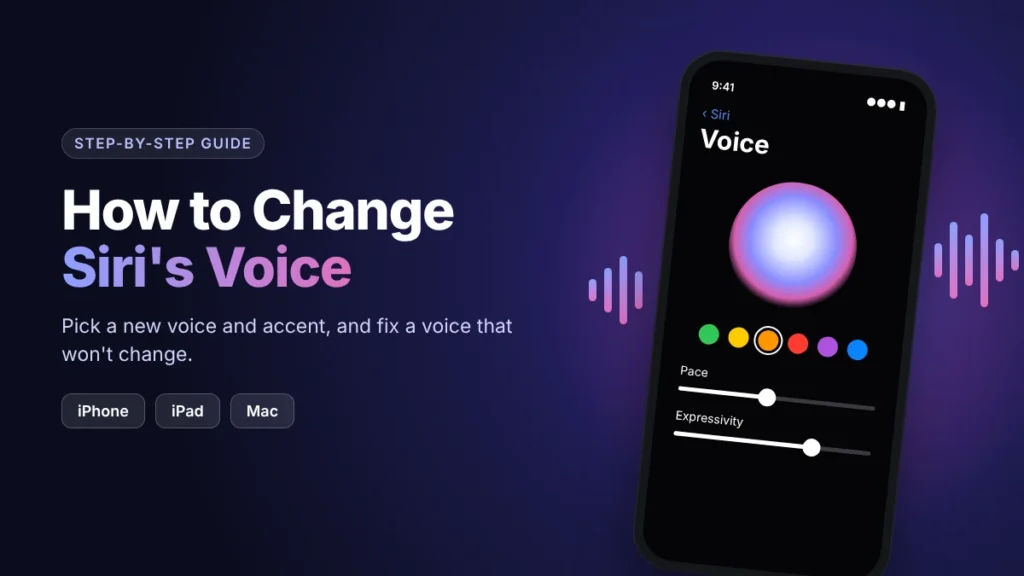
If Siri’s voice sounds too flat, too fast, or has an accent you’d rather not hear every day, you can change it in a minute or two. You don’t need a third-party app. Everything is in your device’s built-in settings.
Quick answer: On an iPhone or iPad, open Settings, tap Siri, then tap Voice and choose an accent and a voice. On a Mac, open System Settings, click Siri in the sidebar, then use Variation and Voice. Give the new voice a moment to download, then ask Siri a question to hear it.
The menu names change a little between software versions, and the voices you can pick depend on your language, region, and device. The sections below cover those differences.
Voice, accent, and language: three different settings
A common mistake is changing Siri’s language when you only wanted a different voice. They live next to each other in Settings, but they do different jobs.
| Setting | What it changes | Example |
|---|---|---|
| Language | The language you speak to Siri and the language Siri answers in | English (United States) vs. Spanish (Mexico) |
| Variation (accent) | The accent Siri uses within that language | American, British, or Indian English (illustrative; options vary by language) |
| Voice | Which specific voice reads Siri’s replies | Voice 1, Voice 2, and so on |
| Pace and Expressivity | How fast and how animated Siri sounds | Available only with Siri AI on supported devices |
Language has the widest effect. According to Apple’s support article on changing Siri’s voice or language, the language you choose is also used by Maps, turn-by-turn directions, and Listen to Page in Safari. So if you only want Siri to sound different, leave Language alone and change Variation and Voice instead.
Which Siri voices are available to you?
There is no single worldwide list. What you see depends on three things.
- Your Siri language. Apple notes that the Siri voice can’t be changed in every language, and some languages offer only one voice or no accent choices.
- Your region. Apple says Siri languages and features vary by region and device settings.
- Your device and Siri version. Newer software includes Siri AI (Beta). On supported devices, it adds Expressive Voices, which let you adjust pace and expressivity as well as the voice itself.
In practice, you’ll see one of two screens when you open Siri’s voice settings:
- The standard list. Accents appear under Variations and voices under Voices. This is what most devices show.
- The Expressive Voices screen. This screen has controls for Voice, Pace, and Expressivity, and it plays a preview as you make changes. It only appears when Siri AI is turned on and your device supports it.
Apple lists these devices as supporting Expressive Voices: iPhone Duo, iPhone 17 Pro and iPhone 18 Pro models, iPhone Air, iPad (M4) or later with at least 12 GB of unified memory, Mac (M3) or later with at least 12 GB of unified memory, and Apple Vision Pro (M5). Apple also says Siri AI (Beta) currently works only in English. Apple’s Mac Help adds that Siri AI isn’t initially available in the EU on iPhone and iPad.
How to change Siri’s voice on iPhone
Before you start: make sure Siri is turned on and you’re connected to the internet, since a new voice usually needs to download.
- Open the Settings app.
- Scroll down and tap Siri. On some software versions, this is called Apple Intelligence & Siri.
- Tap Voice. Some versions call it Siri Voice.
- Under Variations, tap the accent you want.
- Under Voices, tap a voice. Tap a few in turn to compare them.
- Stay on the screen until the new voice finishes downloading. If a progress indicator appears, don’t leave or lock the phone until it’s done.
Check that it worked: Press and hold the side button (or say “Siri” or “Hey Siri,” depending on your setup), then ask something simple, such as “What’s the weather today?” Siri should answer in the new voice. If it doesn’t, see the troubleshooting section below.
If you see Pace and Expressivity controls
On a supported iPhone with Siri AI turned on, the Voice screen looks different.
- Go to Settings > Siri > Voice.
- Pick a voice.
- Adjust Pace to make Siri speak faster or slower.
- Adjust Expressivity. Higher settings sound more conversational, and lower settings sound more neutral.
- Listen to the preview and keep adjusting until you’re happy with it.
Changing Siri’s speed without Siri AI
You don’t need Siri AI to slow Siri down. On recent versions of iOS, go to Settings > Accessibility > Siri and drag the Speaking Rate slider. This is useful if you find Siri hard to follow, or if you’re setting up an iPhone for someone who wants slower replies.
How to change Siri’s voice on iPad
The steps are the same as on iPhone: Settings > Siri (or Apple Intelligence & Siri) > Voice, then choose a variation and a voice.
Pace and Expressivity controls only appear on an iPad with an M4 chip or later, at least 12 GB of unified memory, and Siri AI turned on. On other iPads, you’ll see the standard accent and voice list.
How to change Siri’s voice on Mac
On current macOS, as described in Apple’s guide to customizing Siri on Mac:
- Open System Settings from the Apple menu or the Dock.
- Click Siri in the sidebar. You may need to scroll down to find it.
- To change the accent, click Variation and choose an option.
- To change the voice, click Voice and choose an option.
- If you’re using Siri AI on a supported Mac, click Voice and adjust the Voice, Pace, and Expressivity settings.
Apple says Expressive Voices on Mac require Siri AI (Beta) on a Mac with M3 or later and at least 12 GB of unified memory. For now, they’re available in English only, with American and British voices.
If your Mac runs an older version of macOS that still uses System Preferences instead of System Settings, go to Apple menu > System Preferences > Siri and use the Siri Voice and Voice Variety menus there.
What about Apple Watch and Apple TV?
You don’t set Siri’s voice separately on these devices. Apple says Apple Watch uses the language and voice you’ve set on your paired iPhone. Siri on Apple TV doesn’t speak at all; it shows its results on screen, so only the language setting applies.
Troubleshooting: when Siri’s voice won’t change
Start with the quick checks. None of these steps erase any data.
The voice or accent you want isn’t listed
- Check Siri’s language. The voice list depends on your Siri language. If you speak English but your Siri language is set to a different region’s English, you’ll see different accents.
- Accept the limit for your language. Some languages have only one voice. There’s no workaround for this in Settings.
- Pace and Expressivity are missing. This usually means Siri AI isn’t turned on, your device isn’t on Apple’s supported list, or Siri AI isn’t offered in your language or region yet.
You picked a new voice, but Siri sounds the same
- Let the download finish. Go back to the Voice screen, reconnect to Wi-Fi, and wait.
- Switch voices and switch back. Apple Community volunteers often suggest choosing a different voice, then choosing the one you want again, which makes the device reload it. This is a community-reported fix, not an official Apple step.
- Restart your device.
- Update your software under Settings > General > Software Update (or System Settings > General > Software Update on Mac).
Maps or VoiceOver uses a different voice
Apple says your Siri language is also used for Maps directions. If Maps still sounds different after you change Siri’s voice, restart your device and check that you have the latest update.
VoiceOver and Spoken Content (the feature that reads the screen aloud) are separate. Their voices are set under Settings > Accessibility, so changing Siri’s voice won’t change them.
FAQs
Can a third-party app give Siri a custom or celebrity voice? No. Siri’s voice can only be changed with Apple’s own settings. Be wary of apps that claim to change it.
Will changing Siri’s language reset anything? It changes the language Siri listens for and replies in, and Apple says it also affects Maps and Listen to Page in Safari. If you only want a new accent, change Variation and leave Language as it is.
Your next step
Open Settings > Siri > Voice on your iPhone (or System Settings > Siri on your Mac), preview a few voices, and pick the one that’s easiest for you to listen to. Wait for the download to finish, then ask Siri a quick question to make sure the new voice is working. If you don’t like it, you can switch back the same way at any time.